Sometimes we encounter memory threshold issues while querying data in Appian. Why does this happen, and what are the best practices to avoid it?
Answer
Why the memory threshold error happens
Appian limits how much memory a single query result can use while it converts database rows into Appian values. The limit protects the application server’s heap. If a result is too big, whether from too many rows or too many columns, Appian stops the operation and throws the memory threshold error.
This usually happens when you pull a whole table, or any very large result, without filters or paging. The database may return a million rows, but Appian won’t load them all into memory at once.
The error reads Memory threshold reached during output conversion (threshold: 1,048,576 bytes). The number is the default limit, about 1 MB, and the message means the result went over it.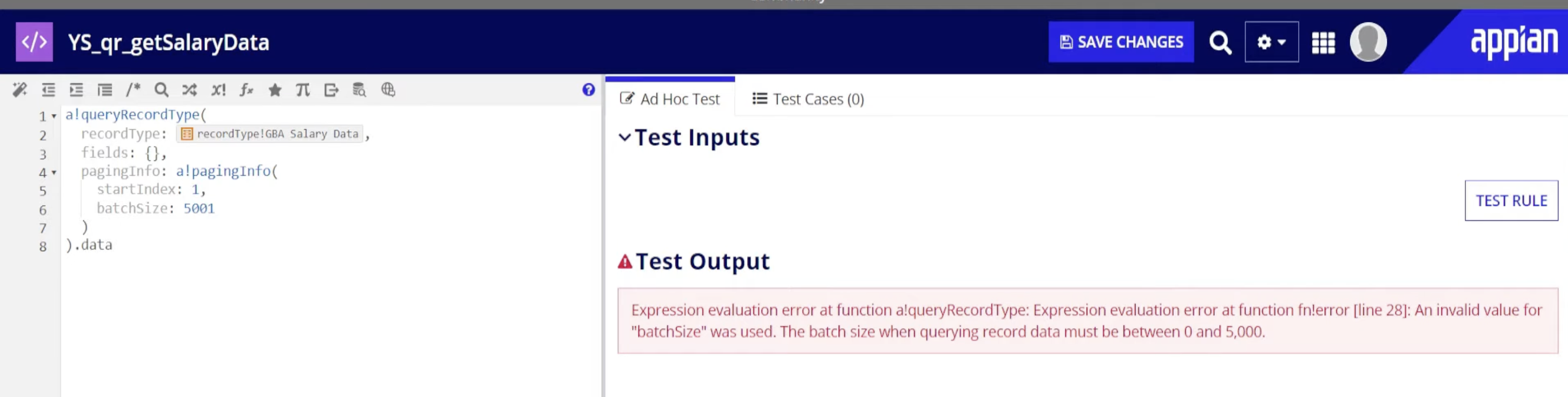
How to avoid it
1. Page the results
Use a!pagingInfo() with a batchSize so each call returns a limited number of rows. In a!queryEntity, the paging goes inside a!query:
Each call loads at most 200 rows. The sort keeps the order the same from page to page. If you still hit the error, lower the batch size, because 200 wide rows can use far more memory than 200 narrow ones.
2. Return only the columns you need
Don’t return the full CDT. Name the fields you need in a!querySelection, or select just those fields in a record type query. Fewer columns means less data in memory.
3. Filter the query
Add filters so the result is only the subset the caller needs, not an unbounded set.
4. Let the database do the calculating
If you only need a count, a sum, or grouped totals, have the query compute them. Don’t load every row and calculate in Appian. If you have complex calculation, mostly use a view or store procedure and query the data from it
5. Process bulk work in batches
When a process has to touch every row, work through the table one batch at a time. Query a page, process it, then fetch the next, instead of loading everything first.